just volleyball Controls and Settings: Keybinds and Camera Guide
Configure default keyboard and controller bindings, field of view camera settings, and gameplay assists in just volleyball.
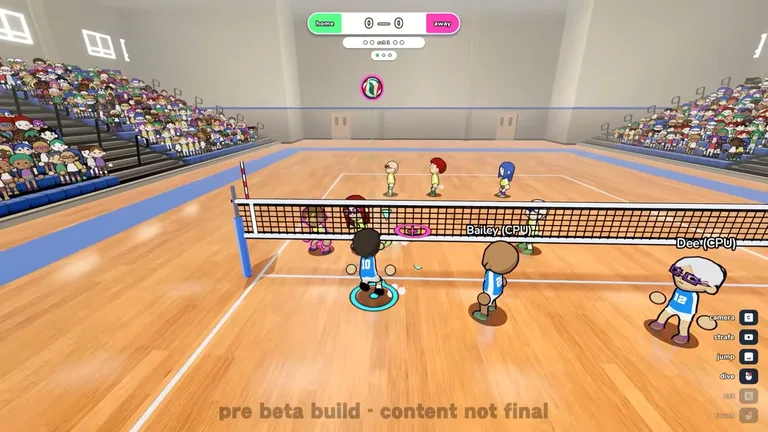
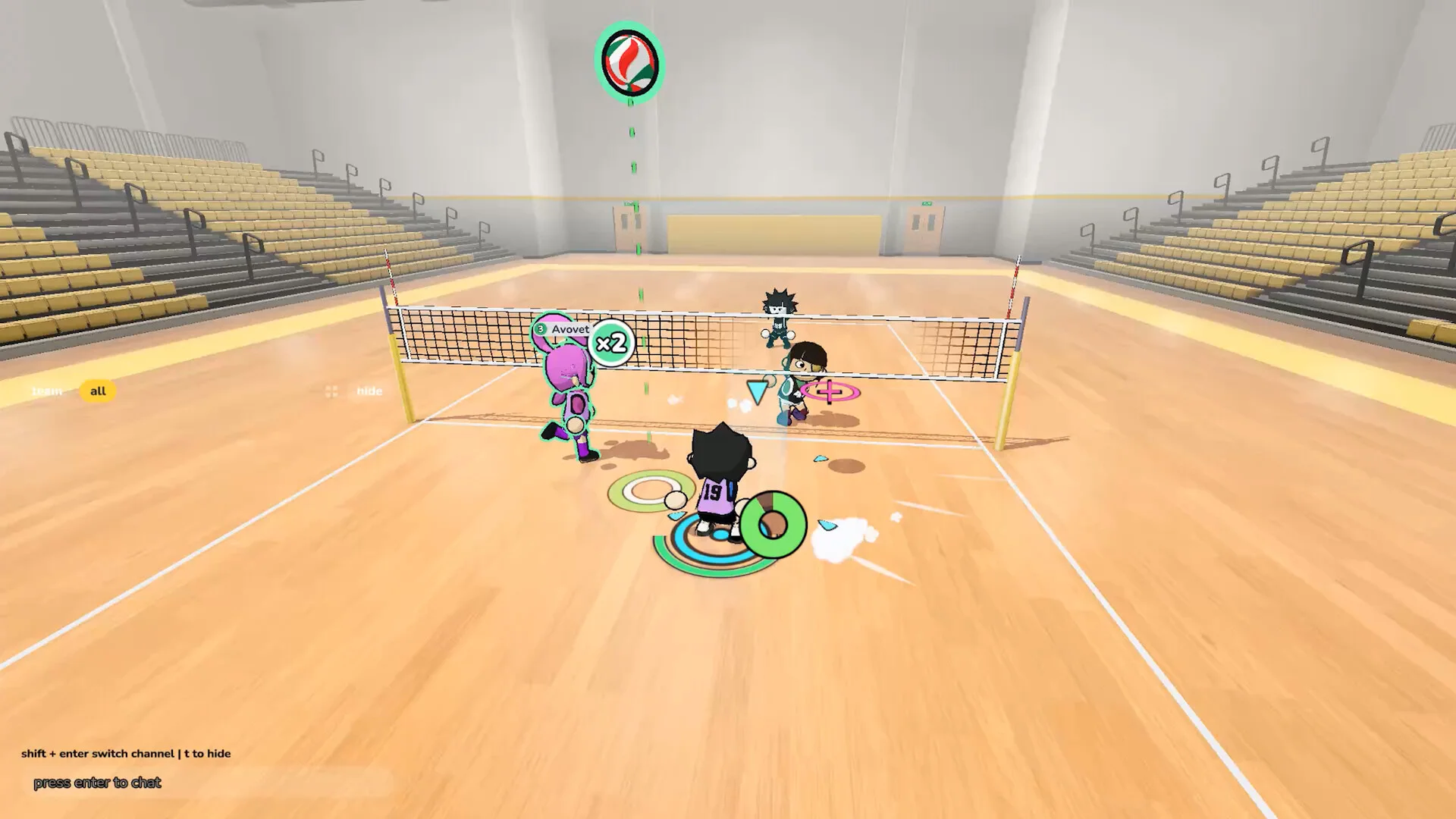
Default Action Controls and Keybinds
In just volleyball, control prompts displayed across the interface dynamically reflect the keybinds mapped in your active profile. Primary ball contact is bound to Left Click on mouse or RT / R2 triggers on gamepads. Setting actions default to E on keyboard and the X / Square button on controllers. Defensive diving maps to Right Click on mouse and B / Circle on gamepads. Jumping is executed via Space on keyboard or the A / Cross face button on controllers. Review our comprehensive how to play guide to understand the core three touch rally flow. For an end-to-end overview of match progression, see our beginner’s guide.
Movement and Serving Controls
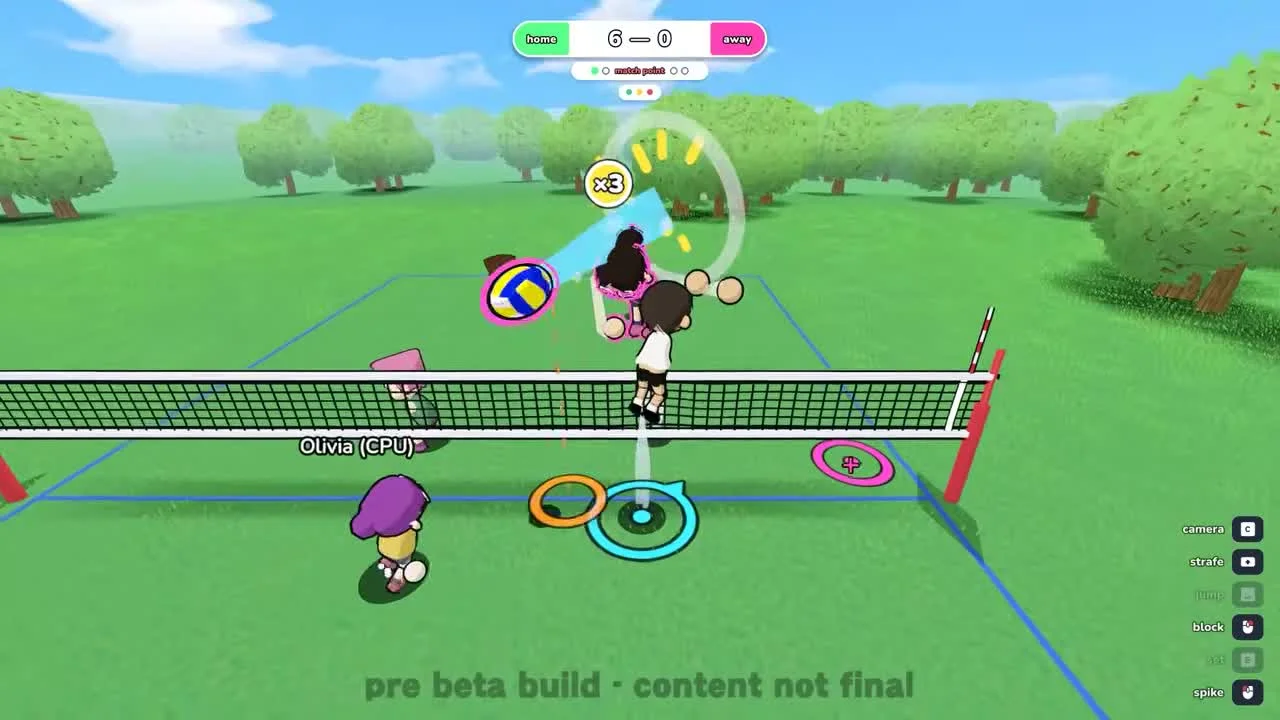
Serving actions are triggered with R on keyboard or the Y / Triangle button on gamepads. Strafing allows instant deceleration and pivoting by holding Shift on keyboard or LT / L2 on controllers. Sprinting is bound to Ctrl on keyboard or the LB / L1 bumper on gamepads. Explore advanced momentum mechanics and jumping styles in our movement guide. Check our detailed breakdown on receiving and diving techniques to practice defensive floor saves.
Controller Aiming and Recenter Function
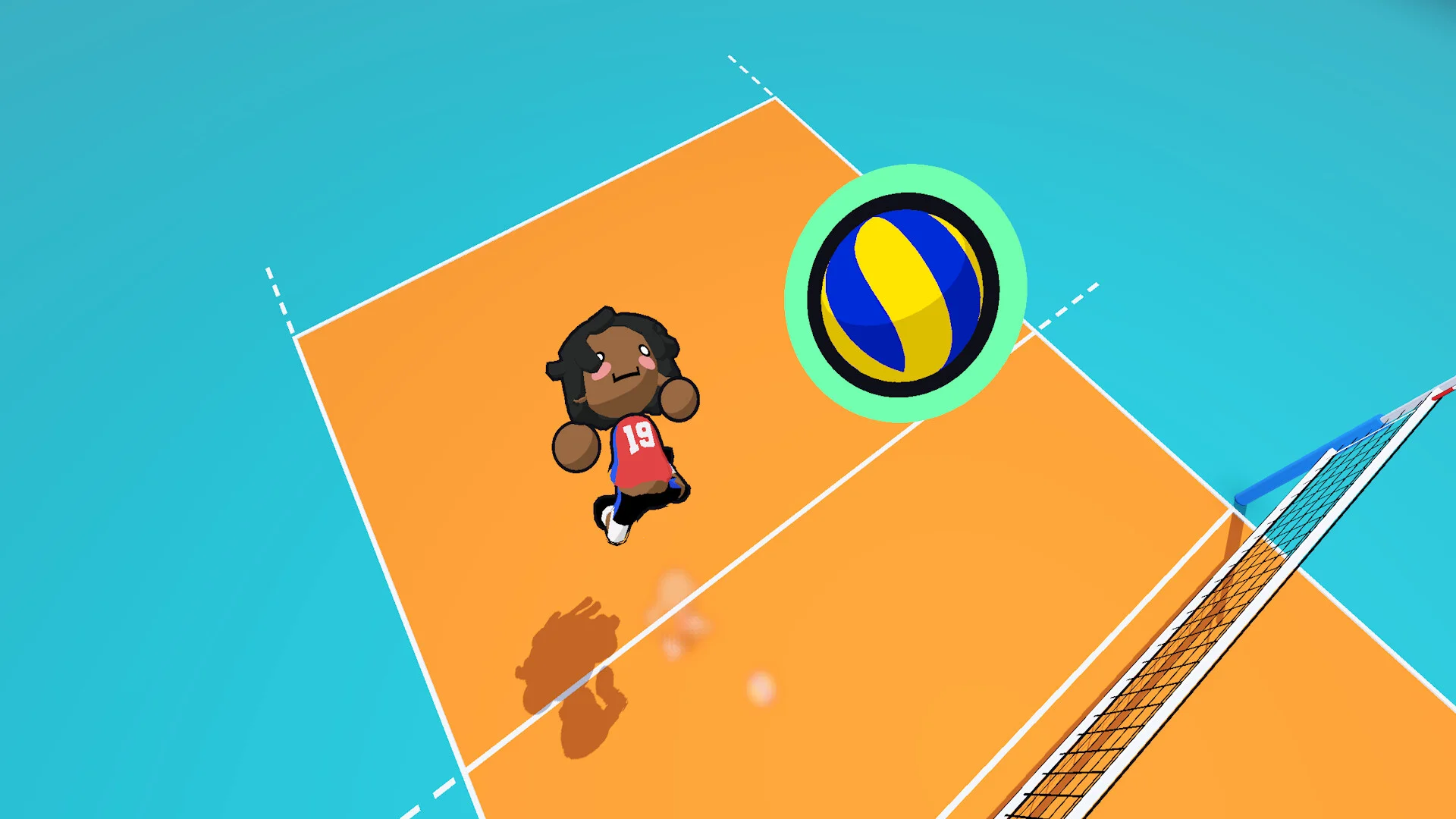
When playing on a controller, targeting cursor coordinates remain at the stick position where you release them. Tapping the aim recenter control immediately snaps the target cursor directly back beneath your player character. Master tactical distribution and setter dumps in our setting guide.
Camera Modes and Field of View
Players can toggle camera perspectives during play or adjust view zoom levels to track aerial rallies. The default camera tracks your character across the court, while the broadcast camera offers a simulated television spectator perspective. Match cameras operate with a default field of view set to 72 degrees. The camera field of view can be tightened to a minimum boundary of 60 degrees. Players can expand the camera field of view up to a maximum limit of 90 degrees.
Helpful Gameplay Assists and Toggles
Several optional gameplay settings are available to assist player execution during frantic rallies. Enabling aim assist gently pulls targeting trajectories toward optimal court targets. Turning on set assist ensures overhead passes automatically navigate to the primary hitting pocket near the net. The sprint toggle option enables tapping a movement key to dash rather than continuously holding down the input. The reach marker setting controls whether directional status arrows appear around the ball during incoming plays.